How to process and manage your online orders with SmartBiz?
On this page:
- How to set up delivery charges?
- How to set up delivery radius?
- How to accept orders?
- How to reject orders?
- How to issue a refund if you reject or cancel orders?
On SmartBiz, you will receive a push notification that notifies you of a new order. Alternatively, you can check new orders from the ‘My Orders’ page of your SmartBiz account to check your online orders. Here are the steps on how you can manage your orders with SmartBiz.
To set up the delivery settings, you’ll have to access your SmartBiz account and click on your profile.
How to set up delivery charges?
If you want to charge a delivery fee the orders you receive, follow the steps here.
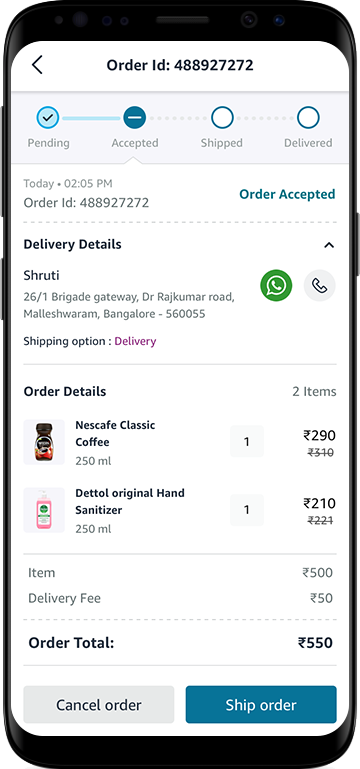
How to set delivery radius?
For your store, update the delivery radius so that customers will be able to see if your shop will deliver to their location. To learn how to add the delivery radius, click here.
How to accept orders?
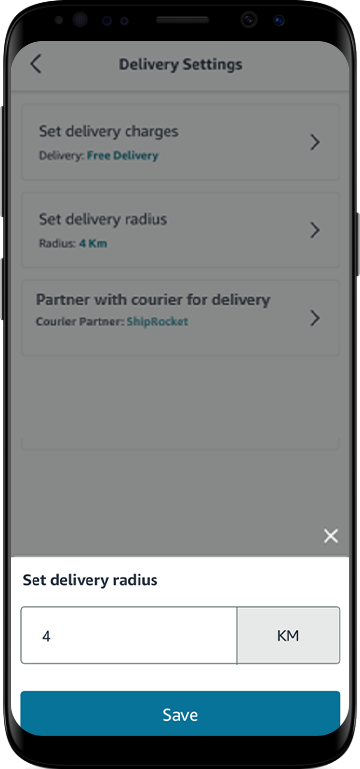
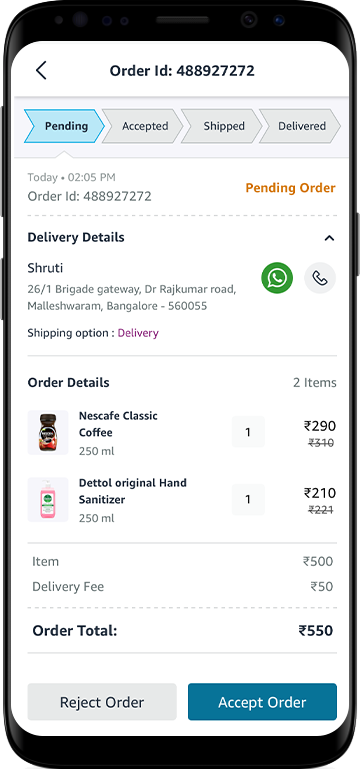
- Click on order details.
- Check the customer details section on the order to identify whether it is a customer-self-pick up order or a home delivery order.
- Accordingly, click on the ‘Accept Order’ button.
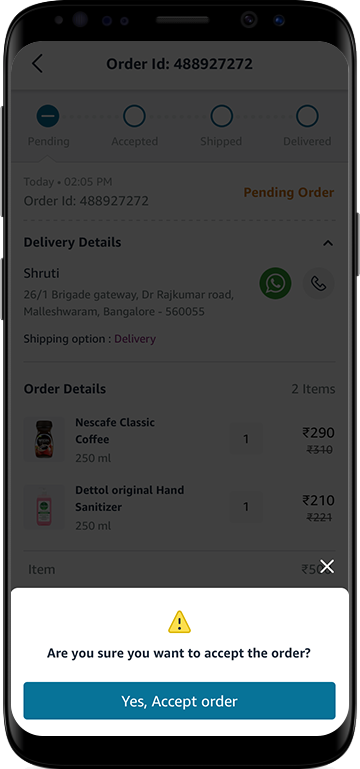
- Confirm that you wish to accept the order by clicking on the ‘Yes, Accept order’ button.
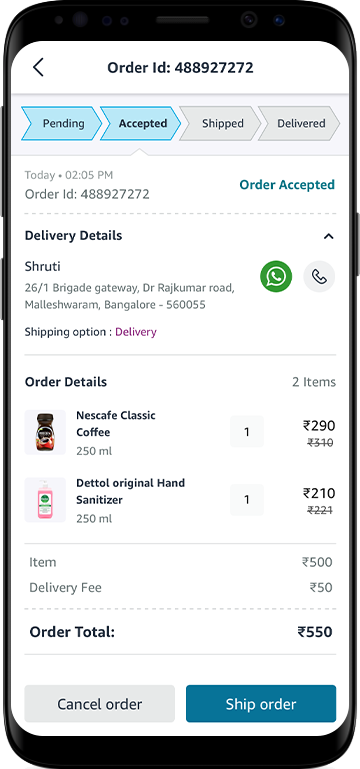
- In case it is a customer self-pick-up order, you need to mark it as ‘ready for pick-up’. Know more about this option here.
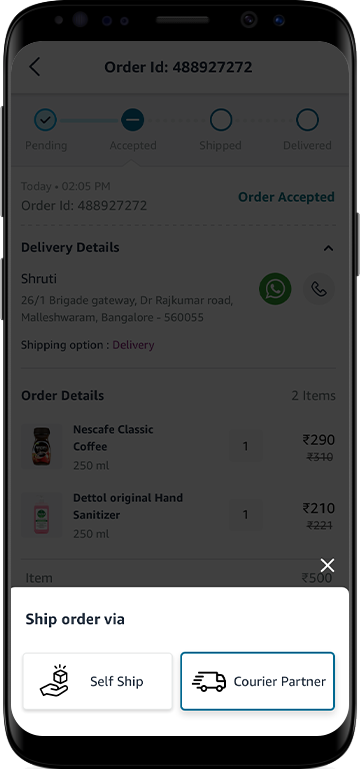
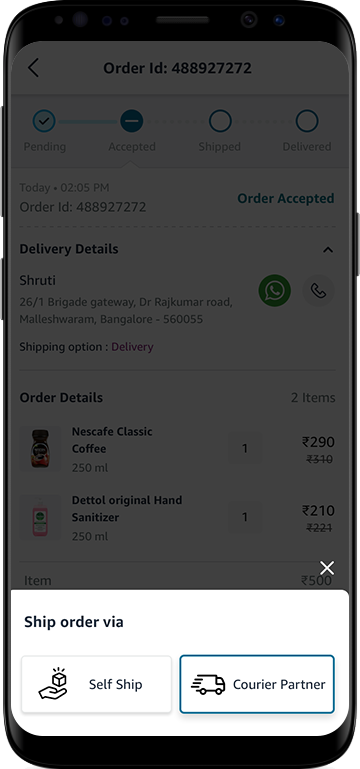
- In case of home delivery, click on the ‘Ship Order’ button to process the order.
- Select either self-ship or courier partner for delivering the order.
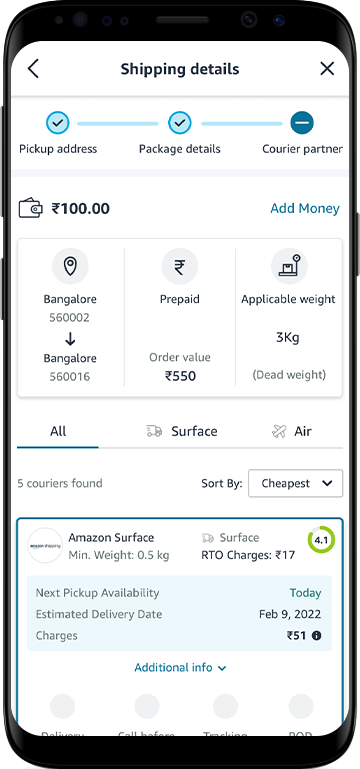
- In case you want to deliver using a courier partner, you will be routed to the ShipRocket dashboard. You can select the carrier based on your preference.
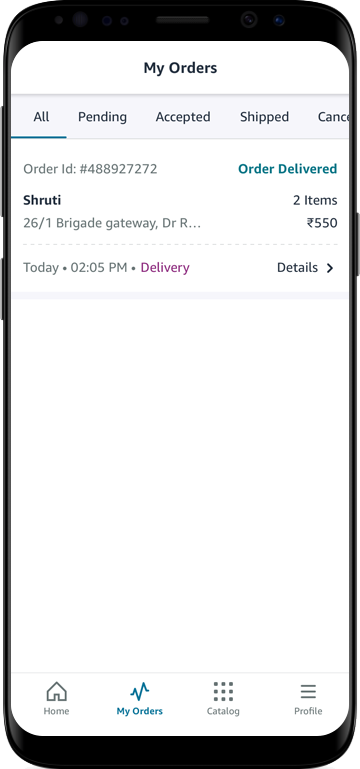
- Click the ‘Mark as delivered’ button when the order has been delivered to the customer.
How to reject orders?
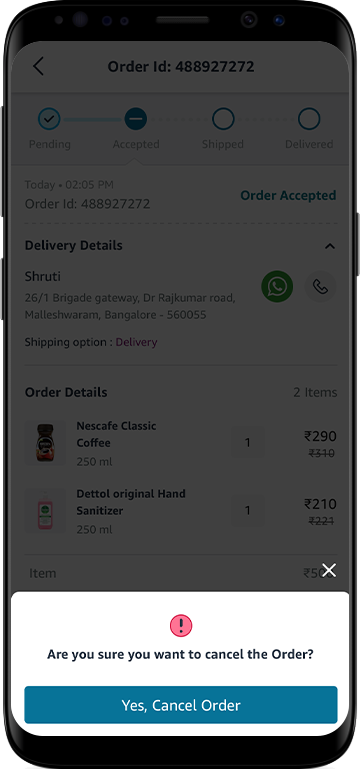
Rejecting/canceling orders impacts the customer’s trust, and you may lose new customers. Therefore, you should not reject or cancel orders unless it is absolutely unavoidable.
To cancel orders, follow these steps:
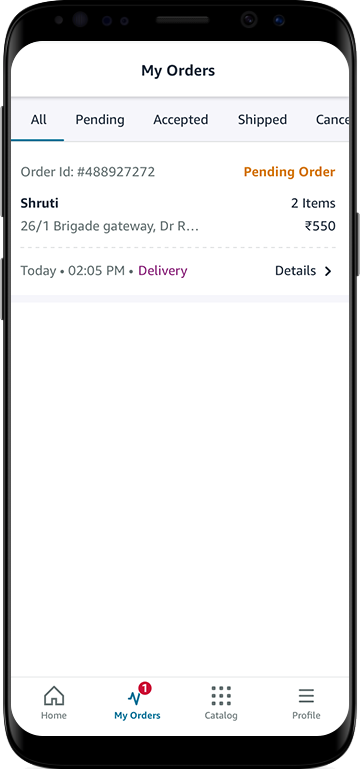
- Go to the ‘My Orders’ page on your SmartBiz account.
- Click on the order details.
- Click on the ‘Reject Order’ button.
- Click ‘Yes, Reject order’ if you are rejecting the order.
- Select one of the reasons as to why you are rejecting the order, such as:
- Product out of stock
- Delivery address too far
- The store is temporarily closed
- Other
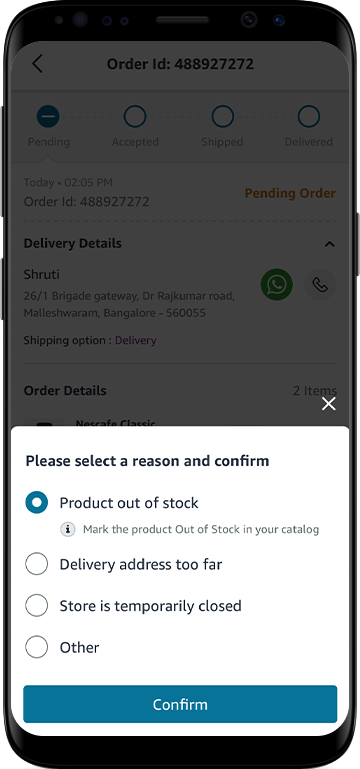
- Click on the ‘Confirm’ button to reject the order.
How to issue a refund if I reject or cancel an order?
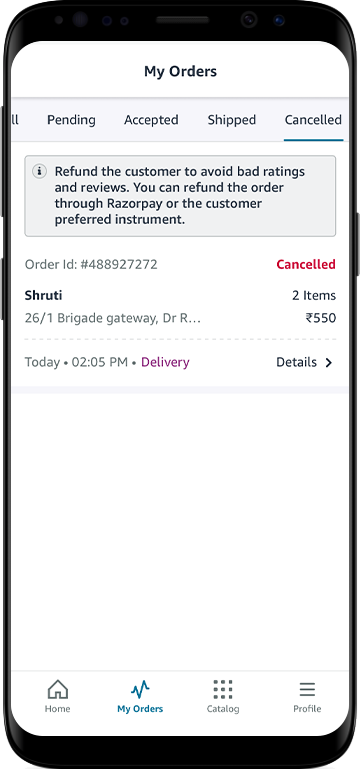
When rejecting or canceling an order, it is important to note that all refunds need to be processed manually by the seller.
- Go to the ‘My Profile’ page on your SmartBiz account.
- Login to your RazorPay dashboard with the credentials sent to your registered email ID.
- Click on transactions and check the payments that have been made.
- Click on the payment ID of the customer and check the order Details.
- Click on ‘Issue Refund’ on the order details pop-up page.
- In case you want to issue a partial refund, you can select ‘Partial Refund’ and fill in the amount that needed to be refunded. Alternatively, you can issue the full amount by clicking on refund.
- Additionally, you can type your comments in the ‘Comment Section’ box if necessary.
- Click on ‘Refund’.
Your amount has been successfully refunded to your customer’s account!
Or
- Go to the ‘My Orders’ page on your SmartBiz account.
- Go to the canceled order page.
- Click on the order details.
- Reach out to the customer through WhatsApp or their contact number.
- Refund the money through online banking apps or services, depending on the customer’s preference.